What if…
The most frequent situations, with the steps to follow. If you are not sure, tell Kokiris: a request ID or a screenshot is enough to find the cause quickly. The error messages of the panel repeat the reason that the server gives, often in English: copy it exactly as it is.
A client sends you the “403 Forbidden” page
The kokiGUARD block page, with the name of the site and, at the bottom, a request ID made of digits, letters and colons.
A rule reacted to the request of the client. Often a false positive on a form, a search or the back office.
Ask the client for the ID, then open Logs and paste it into Search by Request ID. You see the rule and the path that cause the block; 🔍 Details then 🔬 Radiography show the exact field and fragment (2.4). If the request is legitimate: Fix this false positive (3.1), or send the ID to Kokiris.
Tell Kokiris if the block affects the checkout or the payment.
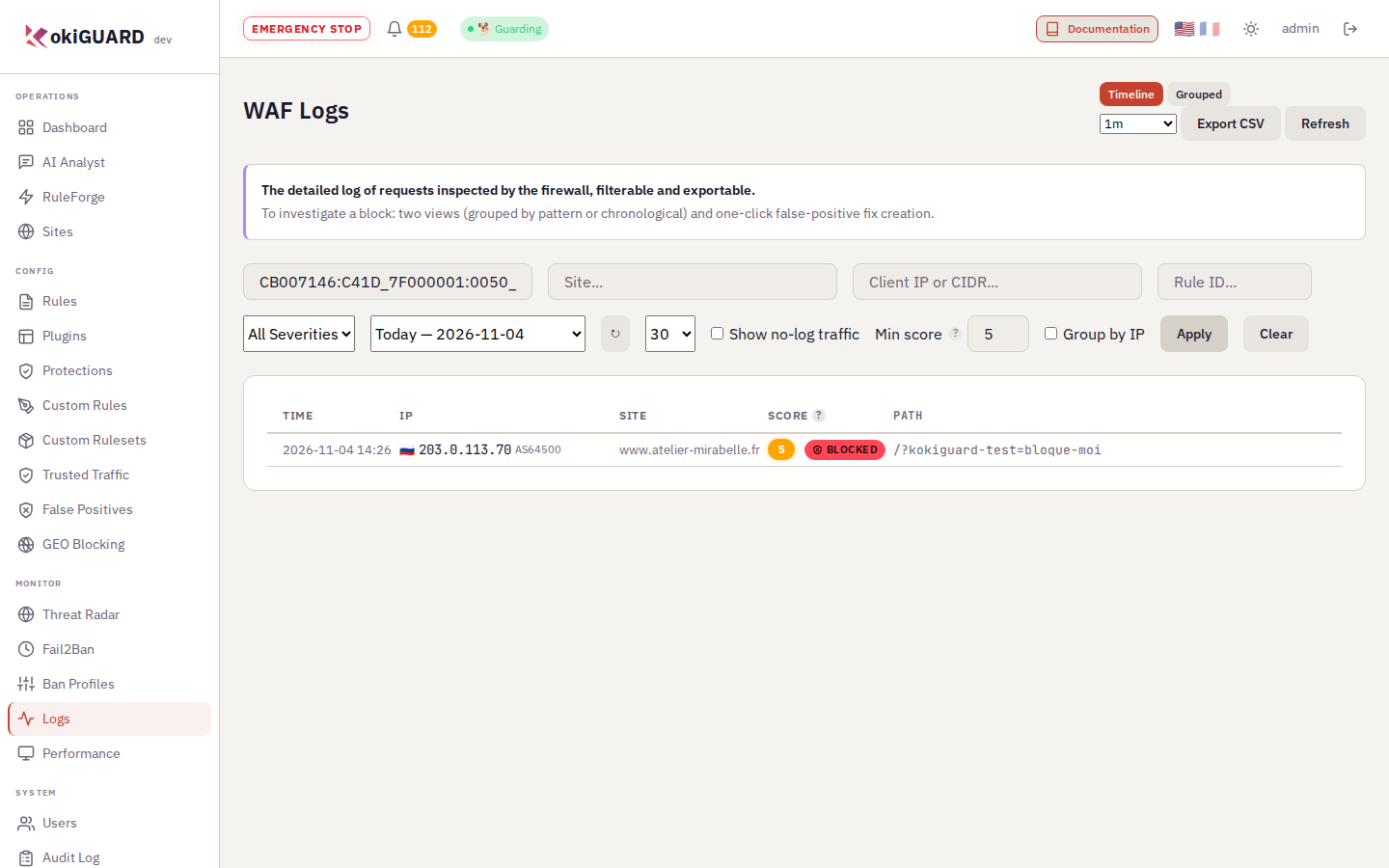
Search by ID. The ID on the 403 page takes you directly to the request, the rule and the path that cause the block.
A page answers “Too Many Requests” (429)
A waiting page or a 429 code, with a retry-after header.
A rate limit on this path, or a full waiting room queue.
Site page → Traffic Control. A client who refreshes should not go above a well-tuned limit: if this occurs, increase the limit. For a partner or a tool: trusted traffic (3.2).
A client sees a running dog before the site opens
The kokiGUARD challenge page (code 403) for a few moments, then the site. Or the page stays on the screen.
The address of the client must solve a challenge: the site is in Challenge mode and the address accumulated blocks or errors, or the “Robots and crawlers” card challenges the browser of the client. Without JavaScript, or on a very slow device, the page does not get through.
If the client waits less than a few seconds, do nothing. If not: Fail2Ban → Find an IP… → details of the IP → Lift challenge (operator role, 4.5), then look in the logs of the address for what made it go up.
Tell Kokiris if several clients report it at the same time.
A large upload answers 413
A 413 Request Entity Too Large error, with the x-waf-action: body-too-large header, on a form or an API.
The body of the request is larger than the size that kokiGUARD inspects, and the site refuses these uploads.
Logs → the Body too large · refused (413) line → Exempt this path from the size limit, then Apply Changes (3.3). If many paths are affected, ask Kokiris to increase the inspected size.
Googlebot, or another useful robot, cannot get through
Crawl errors in Google Search Console, or a 403 with the X-Bot-Blocked header, or a 429.
The “Robots and crawlers” card of the site blocks, limits or challenges this robot. With X-Bot-Blocked: impostor, it is not the real robot: its address is outside the ranges that its owner publishes.
Site page → Robots and crawlers → action Allow on this robot → Save robot settings → Apply Changes (3.5). An impostor stays blocked.
The maintenance page shows, but you did not ask for it
The kokiGUARD “maintenance” page, code 503.
Maintenance mode is on in the site page, often after a deployment that did not remove it.
Site page → Maintenance Mode → empty the field → Save Changes → Apply Changes.
You cannot reach your own site any more
Timeout, connection refused, or 403 with the X-Geo-Blocked header.
Your address was banned after repeated tests, or you use a VPN located in a blocked country.
From another connection (4G, for example): Fail2Ban → Reputation or Ban History → Unban (operator role). Send your fixed IP to Kokiris so that Kokiris exempts it.
Tell Kokiris if you have no other connection: Kokiris unbans you.
A form or the back office stopped working after a change
A 403 error on one specific action, while the rest of the site works.
A rule or a category that is newly active blocks a legitimate request. On PrestaShop or Magento, a missing or incorrect Back-office path removes the exclusions of the admin area.
Logs, filtered on the site and the path, then “Fix this block”. For a shop, check the Back-office path in the site page (5.1). If production is affected and you cannot find the cause: Emergency stop (administrator, 4.3), then look for the cause calmly.
Tell Kokiris if you used the emergency stop.
The “Apply Changes · Discard” banner does not go away
The orange banner at the top of each page.
Saved changes are waiting, or an apply failed and the configuration was rolled back.
Click “view” to read the changes again, then Apply Changes or Discard. If the apply fails, the message gives the revision that was put back: the previous configuration is already in service. If the banner says “applied automatically”, wait: your changes are applied by themselves within 5 minutes (2.2). If there is no Apply Changes button and no automatic apply, your account does not have this right: ask an editor or Kokiris.
Tell Kokiris if a failure message shows: send it exactly as it is.
“Error 409” when you save
A message in English, for example “This node is in standby mode”.
You are connected to a node that is not the leader of the cluster.
Sign in again through the main address of the panel. If the message mentions “lease” or “term”, try again in a few seconds.
Tell Kokiris if the error continues.
The 🤖 buttons are gone
The AI assistant is not configured, your profile does not have the AI assistant right (operator role at least), or the daily quota is reached.
Settings → AI Assistant → “Test connection” (administrator). The quota starts again from zero each day.
An address is banned, but it triggered no rule
In Logs, a “Scan · N/min” line for this address, without a site or a path.
Scanner detection is in Ban mode: your sites sent too many errors to this address. Often a real scanner; sometimes a company or a mobile operator whose visitors all share the address, a tool that checks your links, or the address of a CDN.
If the source is legitimate: Fail2Ban → Unban, then trusted traffic for its address (3.2), or the visited path in Paths not counted (4.4). Behind a CDN, set the detection back to Detection only.
Tell Kokiris if the banned address is the address of a CDN or of a proxy in front of your sites.
The badge shows “🐕 Sleeping” or reports a service in error
A kokiGUARD service is stopped or has a fault.
You have nothing to do: Kokiris monitors these services and takes action.
Tell Kokiris if the badge stays in this state for more than a few minutes.
“Done on this node only: the other nodes were not notified.”
A warning after a ban, an unban or the emptying of a jail.
The action succeeded on the node that answers you, but kokiGUARD could not send it to the other nodes of the cluster.
Write down the address and the action, then tell Kokiris so that Kokiris does the action on all nodes (4.1).
Tell Kokiris if you see this message.
“Insufficient permissions”, or a page is missing from the menu
Your profile does not give this right: the menu shows only the pages that your account can open.
Ask an administrator of your team to adjust your profile (5.5). After the change, sign in again.
You are sent back to the sign-in page
Your session expired: 8 hours without activity, or 24 hours after you signed in, by default. A change of your rights or of your password also closes your sessions.
Sign in again: you come back to the page where you were.
The panel shows “Too many requests, please wait a minute”
Several tabs of the dashboard or of the logs refresh very often. The limit counts for your full account, for all tabs together.
Wait one minute. Close the tabs that you do not need, or change the auto-refresh from 5s to 1m.