Level 3 · Adjust
A useful WAF blocks attacks and does not disturb your customers. Kokiris makes most of these settings during the training phase. This level teaches you to correct a false positive, to exempt trusted traffic and to limit abuse when your site changes.
3.1 Correct a false positive
- Choose the narrowest possible scope for a correction.
- Correct several rules and several fields at once, and read the generated rule.
- Correct only under conditions, for example for a single tool.
A false positive is a legitimate request that the WAF takes for an attack. A frequent example: a content editor who saves HTML in a form field.
| Scope | Effect | When to use it |
|---|---|---|
| Ignore a specific field | The rules ignore a single parameter, for example ARGS:content. | The most frequent case. Choose it first. |
| Only on a path | The rules are off under a path, for example /wp-admin/. | An administration tool sends unusual data. |
| Disable completely | The rules no longer apply at all on the site, or everywhere. | As a last resort, when the rule is of no use for this site. |
- In Logs, open the request: 🔍 Details, then 🔬 Radiography. You see the field in question, and if a correction already covers it.
- Click Fix this false positive: the Fix a rule form opens, filled in with the field in question and the rules that reacted on it. From a row of the logs, Fix this block opens RuleForge, which is also already filled in.
- Choose the narrowest scope and give a reason. If the correction is temporary, add an expiry date: at that time, the correction stops by itself, without Apply Changes.
- Save, then apply. Send the legitimate request again to check that it passes.
Several rules, several fields
One field often makes several rules react. The Rules field accepts several numbers and Fields to ignore accepts several fields, separated by commas: a single correction covers each combination. Before you save, the form counts the combinations and shows the Generated rule, that is, exactly what the WAF will receive.
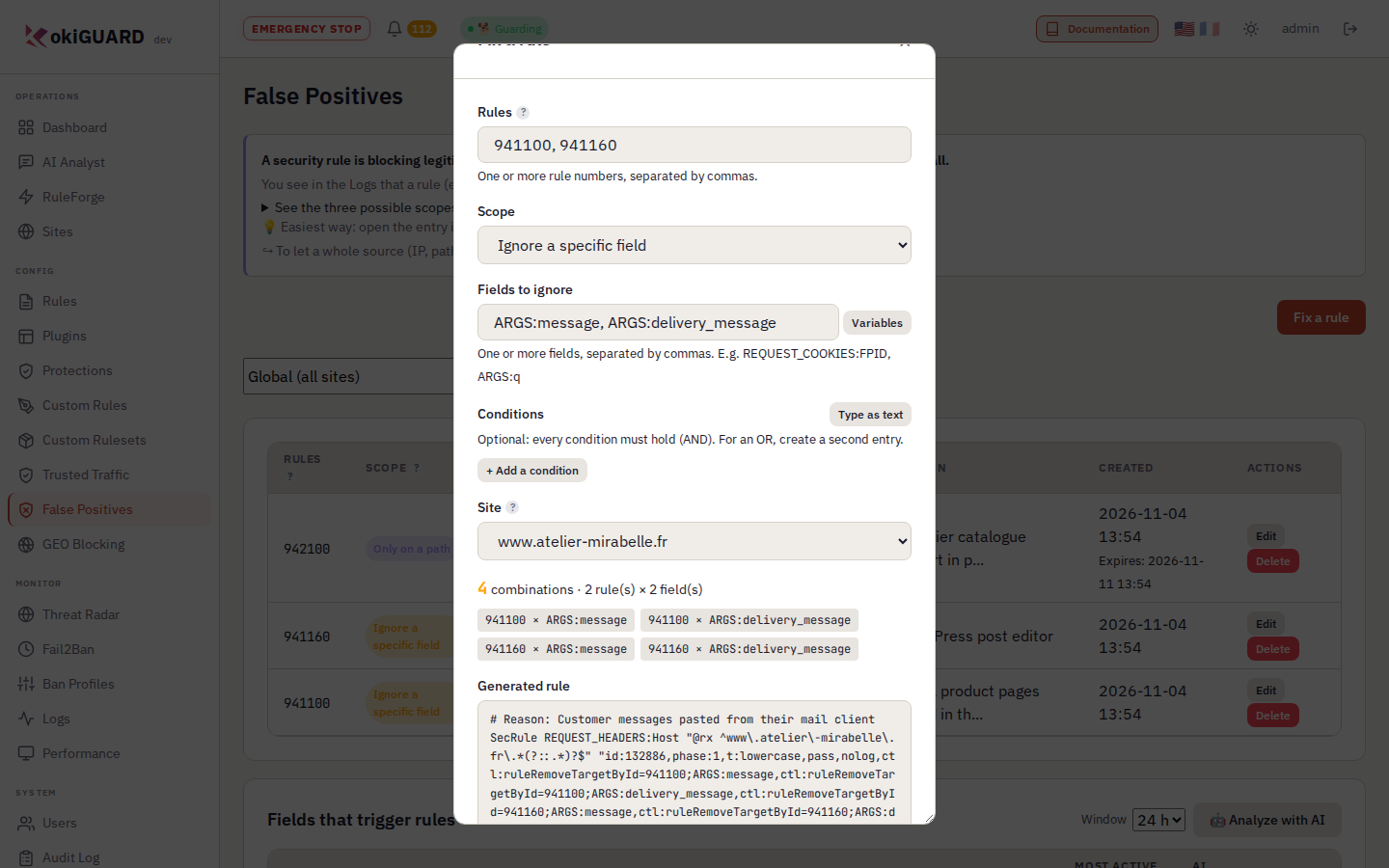
Two rules, two fields, four combinations. The generated rule updates each time you type.
The path of a correction is not case-sensitive: /Admin/ also covers /admin/x. It applies to a full segment: /admin covers /admin and /admin/x, but not /administration. The Only on a path scope removes all the listed rules under this path.
A field can also target the name of a cookie, with REQUEST_COOKIES_NAMES:<name>, when the name of the cookie makes a rule react, and not its value.
Correct only under conditions
A correction can apply only if the request meets one or more Conditions. Example: the catalogue import of a supplier makes rule 942100 react under /import/. Do not turn off the rule for everybody on this path. Instead, add the condition "the X-Fournisseur header is present": the other requests under /import/ stay inspected.
- In the form of the correction, Conditions section, click + Add a condition.
- Choose the variable (
REQUEST_HEADERS,ARGS,REQUEST_COOKIES,REQUEST_URI…), its name if it has one (X-Fournisseur), then the operator: is present, is absent, contains, does not contain, matches (regex) or does not match (regex). - Save, then apply. The list of corrections shows the conditions under each entry, after "Only if".
- All the conditions must be true (AND). For an OR, create a second correction.
- contains and does not contain ignore case. kokiGUARD checks a regular expression when you save.
- Type as text changes to an entry of one condition per line, in ModSecurity syntax:
REQUEST_HEADERS:User-Agent @contains ERP-Sync,ARGS:id @rx ^[0-9]+$,!ARGS:debug(absent). The panel checks each line while you type. - A condition on the body (
ARGS,ARGS_POST,FILES,REQUEST_BODY…) is known only in phase 2: thus the correction does not remove the phase 1 rules (920…, 913…).
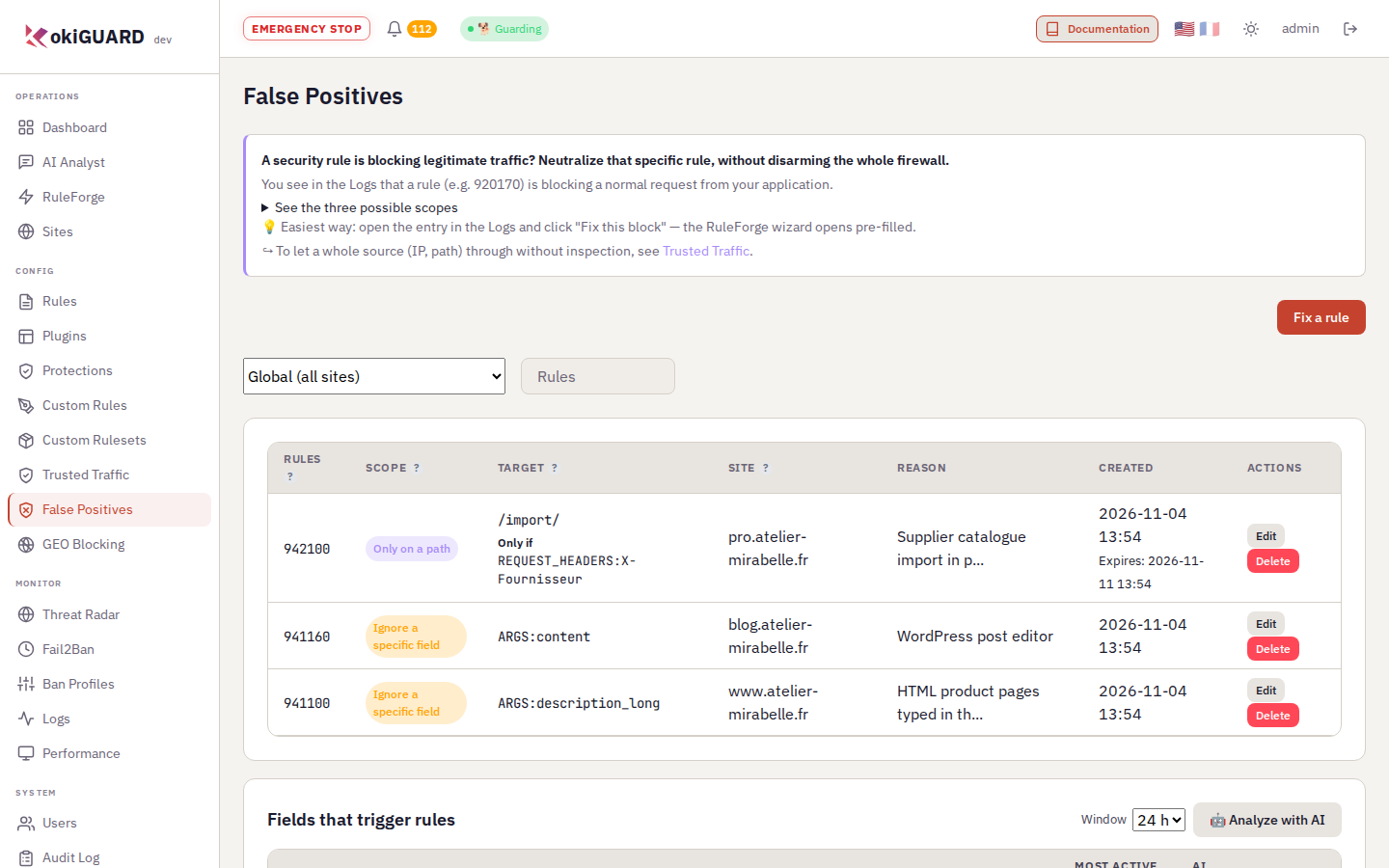
False Positives. All the corrections, global or per site, with their scope and their expiry. Below, Fields that trigger rules ranks the fields that make the WAF react over 1 h, 6 h or 24 h.
In the details of an event, 🤖 False positive? (AI) analyzes the request. On the False Positives page, 🤖 Analyze with AI gives a verdict for each field: FALSE POSITIVE, ATTACK or UNCERTAIN. For a false positive, the AI proposes a correction that the server has already checked: Prefill exclusion opens the form, you read it and you save (chapter 5.4).
Rule 941100 (XSS) blocks the content field of the WordPress editor, and only this field. Which scope do you choose?
3.2 Declare trusted traffic
- Know the difference between "Skip inspection" and "Always inspect".
- Limit a trusted entry with conditions.
Trusted traffic does not go through Coraza. You use it for a monitoring probe, a partner that calls an API, or a known internal tool.
- Skip inspection: the WAF no longer analyzes the IP, the range, the path or the parameter.
- Always inspect: forces the analysis, even if another trust rule covers this traffic. It always wins.
- Do not log this traffic: the WAF stays active, but these requests no longer fill the logs.
It is the staff badge: nobody searches the bags of known employees. That is one more reason to give it only to people that you really know.
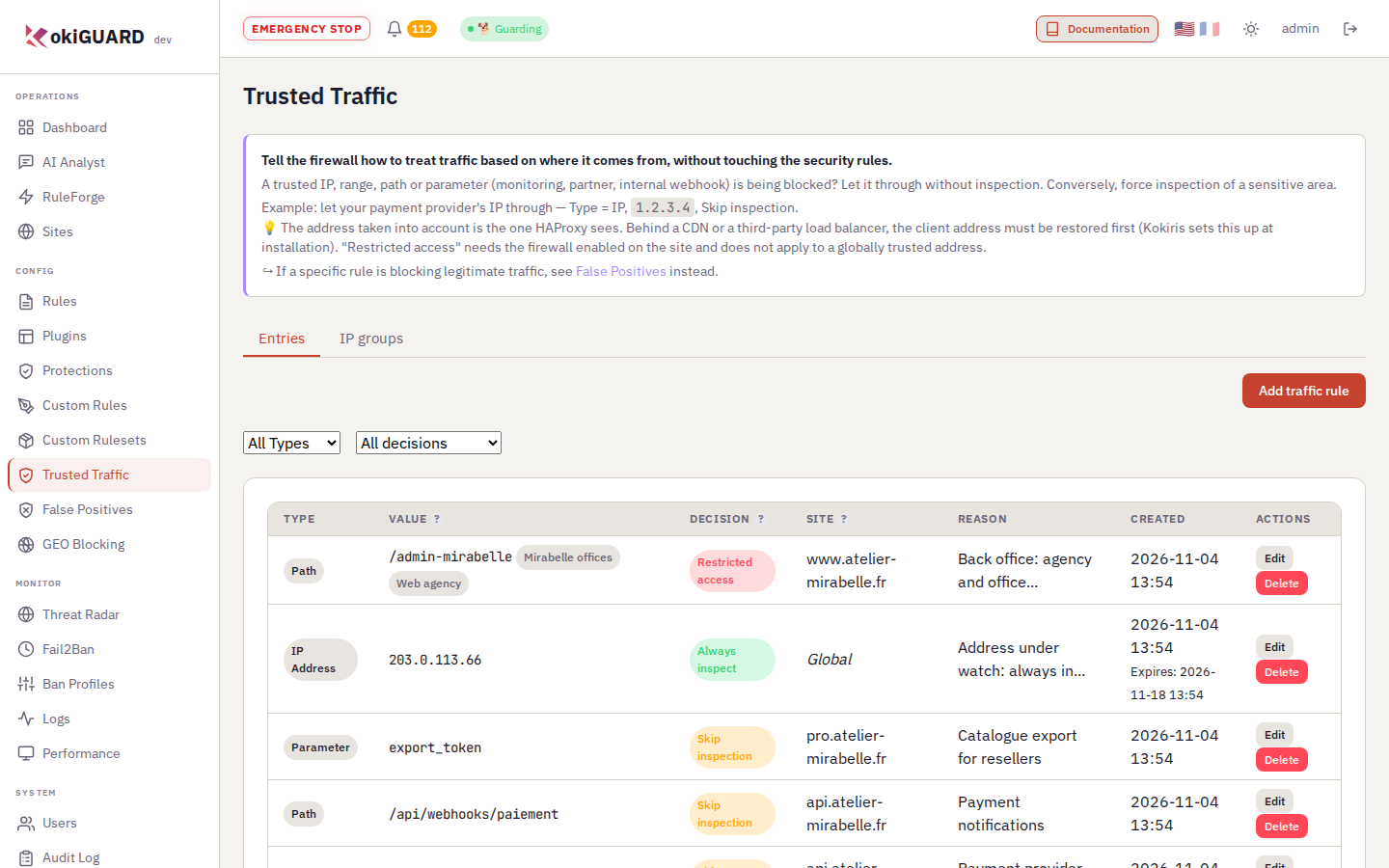
Trusted Traffic. Each rule can target one site or all sites, and can have an expiry date.
At the expiry, a path or a parameter stops at the exact time, without Apply Changes. kokiGUARD removes an address or a range in "Skip inspection" within the next hour, on all the nodes, also without Apply Changes. The expired rule leaves the list within the hour. If the banner then asks you to apply, this only removes the rule from the WAF files: its effect has already stopped.
Like a correction, a Skip inspection entry accepts Conditions (chapter 3.1). Example: the monitoring probe is exempted only if its User-Agent contains Kokiris-Supervision. With conditions, HAProxy no longer exempts an IP address: bans, the JavaScript challenge and the rate limit apply to it. Only the WAF inspection stops, when the conditions are true.
Without a condition, a trusted address or range applies to all the sites of the platform. Thus a reseller or member account must add at least one condition to it, and cannot create "Always inspect" entries. With a condition, the entry applies only to its site.
You correct a false positive rule by rule. Trusted traffic removes all the inspection. Keep it for the sources that you control.
Reserve a path for your offices
An IP group is a named list of addresses (for example "Head office" or "Management"). You create it once in the IP groups tab and you can use it again on all your sites. A rule of the path type can then check one or more groups.
- IP groups tab → Add IP group: a name, then one address or range per line.
- Entries tab → Add traffic rule, type Path Pattern, for example
/wp-login.php, and check the group. Caution: do not restrict all of/wp-admin, because WordPress calls/wp-admin/admin-ajax.phpfrom the public pages. - Decision Restricted access: only the addresses of the group reach the path, the other addresses get a 403 page. With Skip inspection, only these addresses pass without inspection.
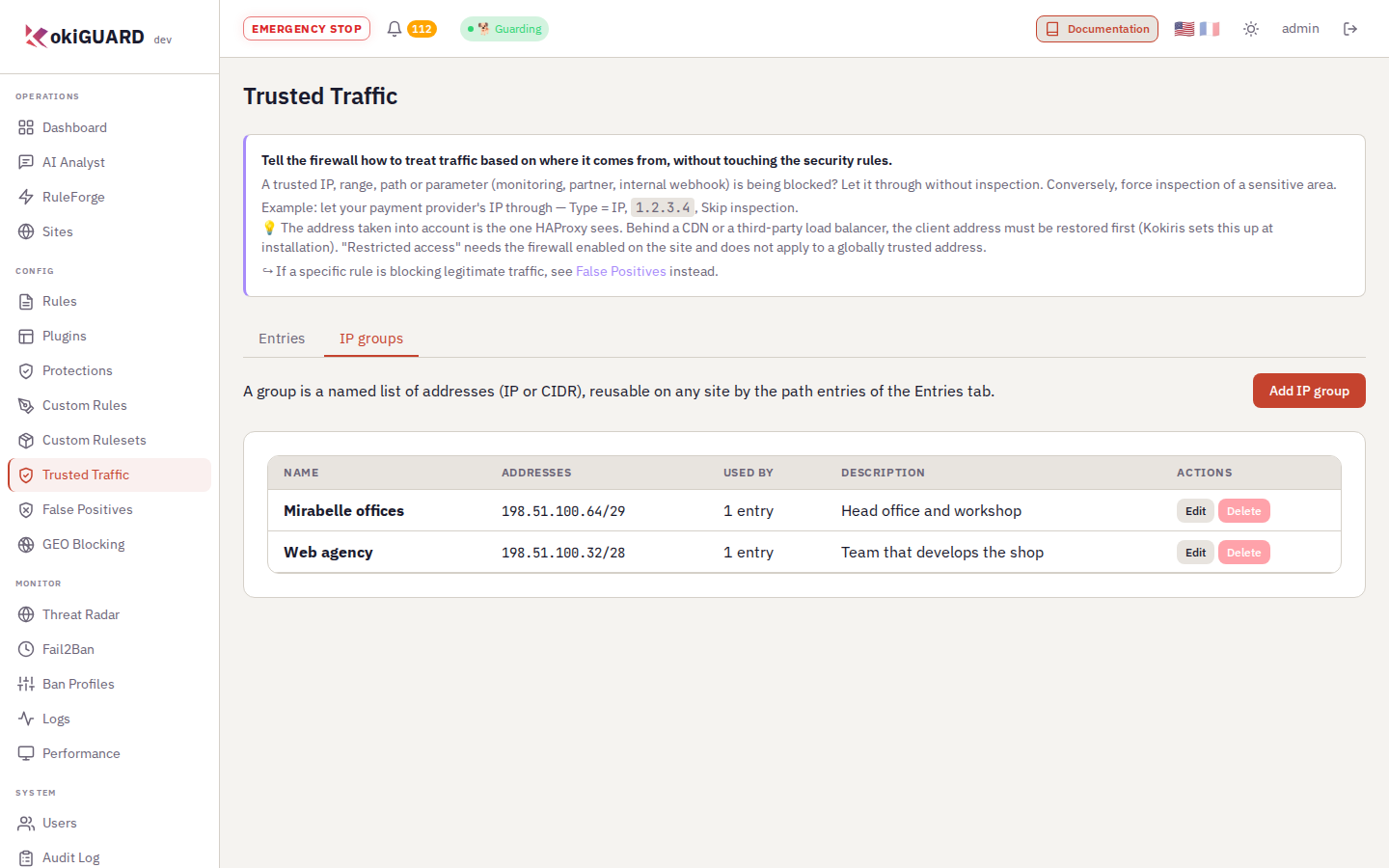
IP groups. The Used by column counts the entries that use the group: here, the back-office path that is reserved for the agency and the offices.
When you change the group, all the rules that use it follow. You cannot delete a group that is in use. Restricted access applies also when the site is in Detect mode, but not to an address that is already globally trusted.
Your monitoring tool calls /health every minute and gets blocked. What is the correct answer?
3.3 Limit the rate
- Protect a login page against series of password attempts.
- Check the limit with a curl loop.
- Choose what happens to large request bodies.
- Open the site page, Traffic Control card, then click + Add Rate Limit.
- Enter the path of your login page (
/wp-login.phpfor WordPress), 5 requests, window of 60 seconds. - Save, then apply.
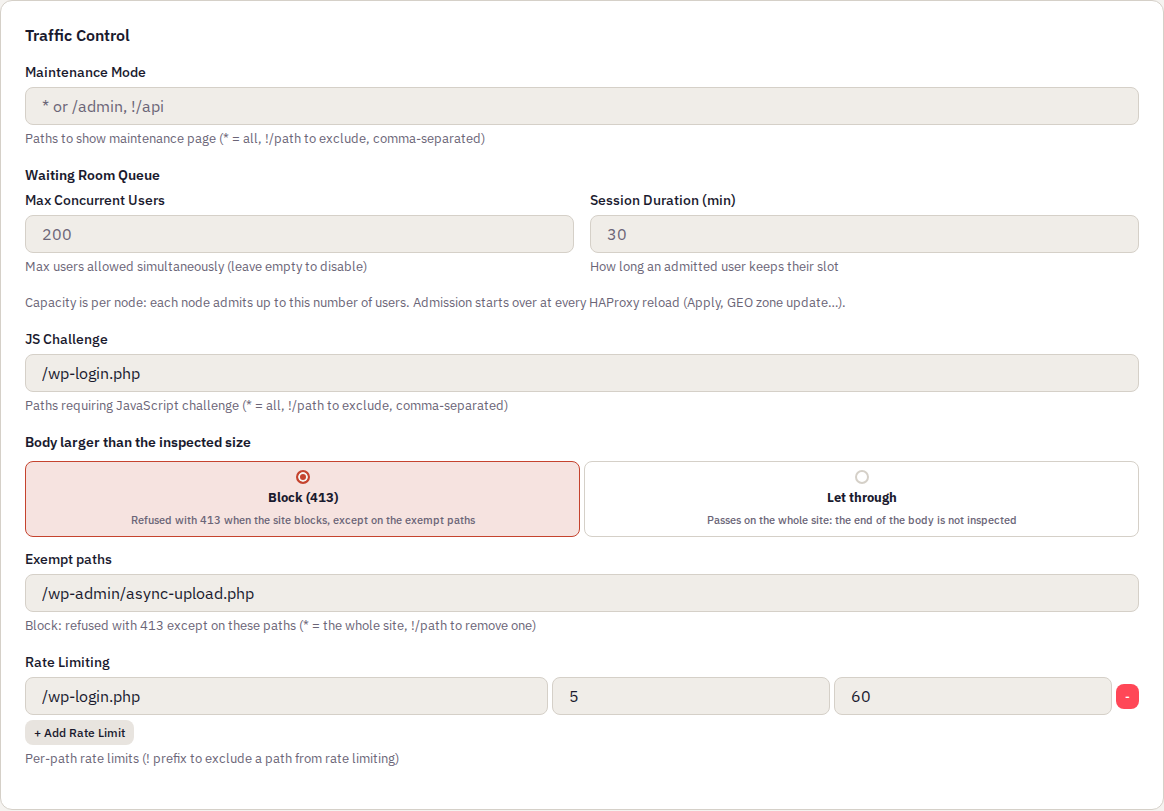
Traffic Control. Five settings: maintenance, queue, JavaScript challenge, large request bodies and rate limiting.
What you must see
for i in $(seq 1 8); do curl -s -o /dev/null -w '%{http_code} ' https://www.votre-site.fr/wp-login.php; done; echo
200 200 200 200 200 429 429 429
curl -s -D - -o /dev/null https://www.votre-site.fr/wp-login.php
HTTP/2 429
retry-after: 60
cache-control: no-cache
content-length: 2818
content-type: text/html; charset=UTF-8
alt-svc: h3=":443"; ma=60
The first five requests pass. From the sixth request, HAProxy returns 429 and tells the client to wait 60 seconds.
| Tool | Response | Example of use |
|---|---|---|
| Rate Limiting | 429 | Login page, public API |
| Maintenance Mode | 503 | * during an update, !/api to keep the API open |
| Waiting Room Queue | 429 | Sales: at most N visitors at the same time |
| JS Challenge | 200 + computation page | Keep simple robots away from /panier |
| Body larger than the inspected size | 413 | Refuse a body that the WAF could not read in full |
Max Concurrent Users applies to each node: on two nodes, up to two times this number of visitors. The admissions start again from zero at each HAProxy reload (Apply Changes, GEO zone update): do not apply during a peak. Without Session Duration, an admitted visitor keeps their place for 30 minutes. The queue never holds back your kokiGUARD panel or the renewal of your certificates.
Large request bodies
kokiGUARD inspects the body of a request (a form, an API JSON) up to a certain size, 64 KB by default. Above this size, it could not read the end: an attack at the end of the body would pass. The Body larger than the inspected size setting of the Traffic Control card tells what to do with these requests:
- Block (413): kokiGUARD refuses the request with the
413code and thex-waf-action: body-too-largeheader, except on the Exempt paths (same syntax as maintenance:*, prefixes,!/pathto remove a path). For example, exempt the WordPress media upload,/wp-admin/async-upload.php. - Let through: the request passes on the whole site, but kokiGUARD does not inspect the end of its body.
The refusal applies only to the sites in Block, Challenge or Ban mode. kokiGUARD never refuses file uploads (multipart/form-data) because of their size, and a trusted path is never affected. A body that is too large gives no reputation points and never causes a ban.
In the logs, these requests have the Body too large pill (" · refused (413)", " · passed" or " · upload"). On a refused row, Exempt this path from the size limit adds its path to the exempt paths of the site. The dashboard counts them in the Bodies too large card.
You set the size itself for the whole installation: Settings, Default WAF Settings card, Inspected body size, from 64 KB to 1 MB (administrator). A larger size costs memory and inspection time for each large body: talk to Kokiris before you change it.
With a limit of 5 requests per 60 s, from which request does a client get 429?
3.4 Block by country
- Create a global geographic rule.
- Make an exception for one site.
The GEO Blocking page acts by country or by continent, for all the sites. Three actions: Block (403), Detect only (logs and does not block) and Redirect to a URL, which is required with this action. Check the countries, or All for a full continent, choose the action, click Save, then apply. If you leave the page before you save, the panel asks you to confirm.
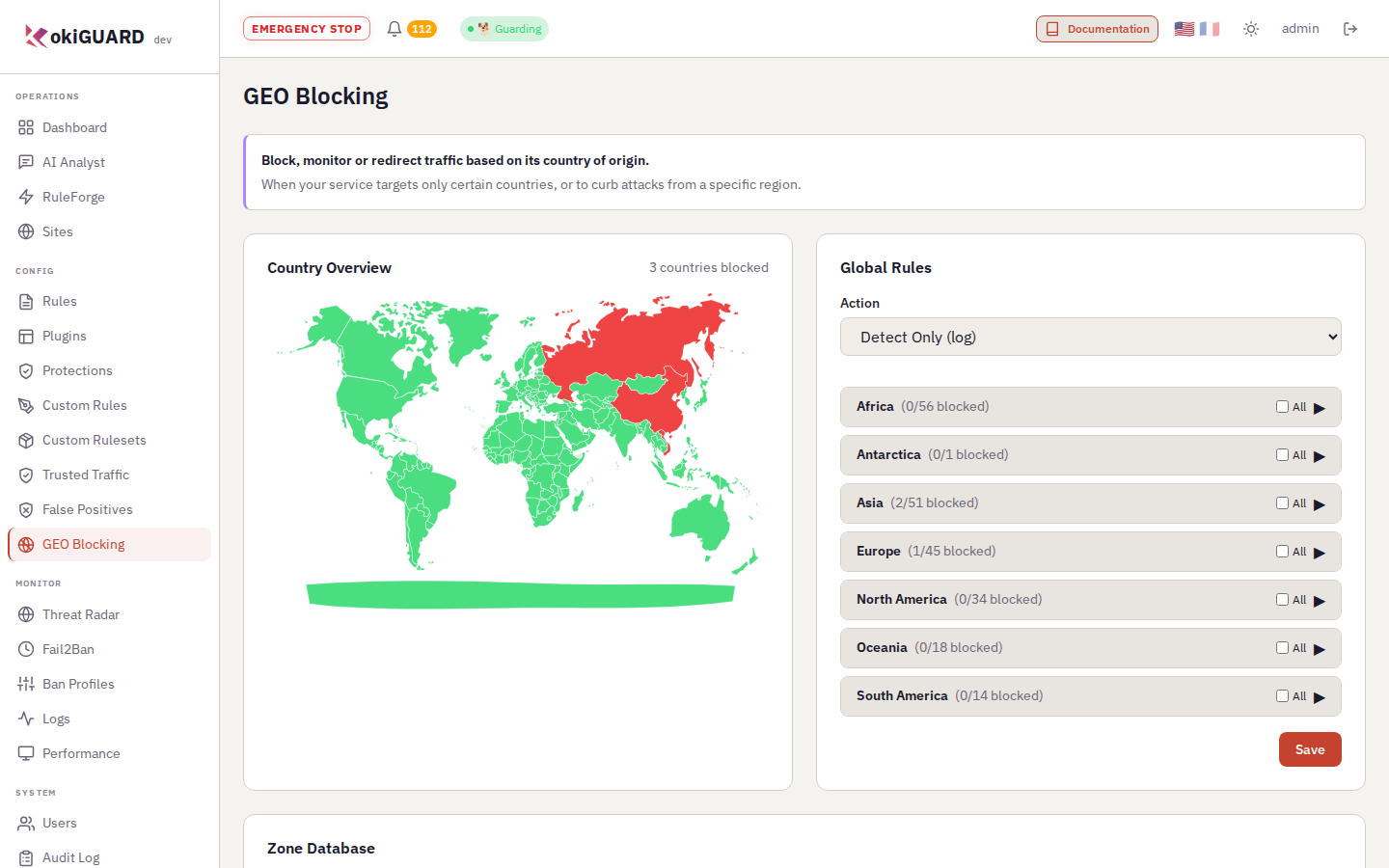
GEO Blocking. Three countries in Detect only: their requests pass and are logged, so that you can measure before you block. Lower on the page, the zone database, which you must update from time to time.
For a site that must behave differently, use the GEO Blocking Override card of its site page: add countries to the global list, remove countries from it (whitelist), or replace it.
kokiGUARD saves a continent as the list of its countries, also from the threat radar or RuleForge. AF is Afghanistan, AS is American Samoa, NA is Namibia and SA is Saudi Arabia, never a continent. With the versions before October 2026, a continent blocked from the radar or RuleForge was saved under one of these codes: if you created such entries, read your lists again, or ask Kokiris to do it.
A request blocked by country gets a 403 with the X-Geo-Blocked: 1 header.
3.5 Robots and crawlers
- Know the difference between a verified robot, a declared robot and an impostor.
- Choose, site by site, what you do with each known robot.
Search engines, AI training robots, AI assistants, SEO tools, social media previews: a part of your traffic comes from robots that show their real name. Some robots bring you customers, others copy your content and give nothing back. The Robots and crawlers card of the site page decides, robot by robot, what they can do.
kokiGUARD recognizes a robot by its User-Agent and, when its operator publishes them, by its IP address ranges. The Verification column shows the result:
| Mark | Meaning |
|---|---|
| ✔ Verified | User-Agent of the robot and address in the ranges that its operator publishes (Google, Microsoft, OpenAI…). |
| ⚠ Not verifiable | The operator does not publish its ranges: kokiGUARD recognizes the robot only by its User-Agent, which anybody can copy. |
| Impostors | User-Agent of a verifiable robot, but from an address outside its ranges: somebody pretends to be this robot. |
For each robot, there are four actions:
| Action | Effect |
|---|---|
| Allow | The robot passes. If it is verified, it also escapes the scanner detection and the per-address rate limit, and its detections do not count for the ban. It never escapes the WAF: an attack stays blocked. |
| Limit (requests/min) | Above N requests per minute, it gets a 429. |
| Challenge | It gets the challenge page (chapter 4.5): a robot does not solve it. |
| Block | It gets a 403 with the X-Bot-Blocked header. |
Without a setting on the site, each robot follows the Global default (Settings, Robots and crawlers card, administrator): Allow, except GPTBot, ChatGPT-User, OAI-SearchBot and Bytespider, which are blocked. The impostors get the challenge.
- Open the site page, Robots and crawlers card.
- Start from a Preset…, then adjust robot by robot in the Action column: Search engines only allows the search engines and blocks all the other robots; No AI training blocks the AI training robots and does not change the others; Permissive puts all the robots back on the global default.
- Look at the 30 days (seen · refused) column: it shows which robots really visit this site.
- Click Save robot settings, then apply.
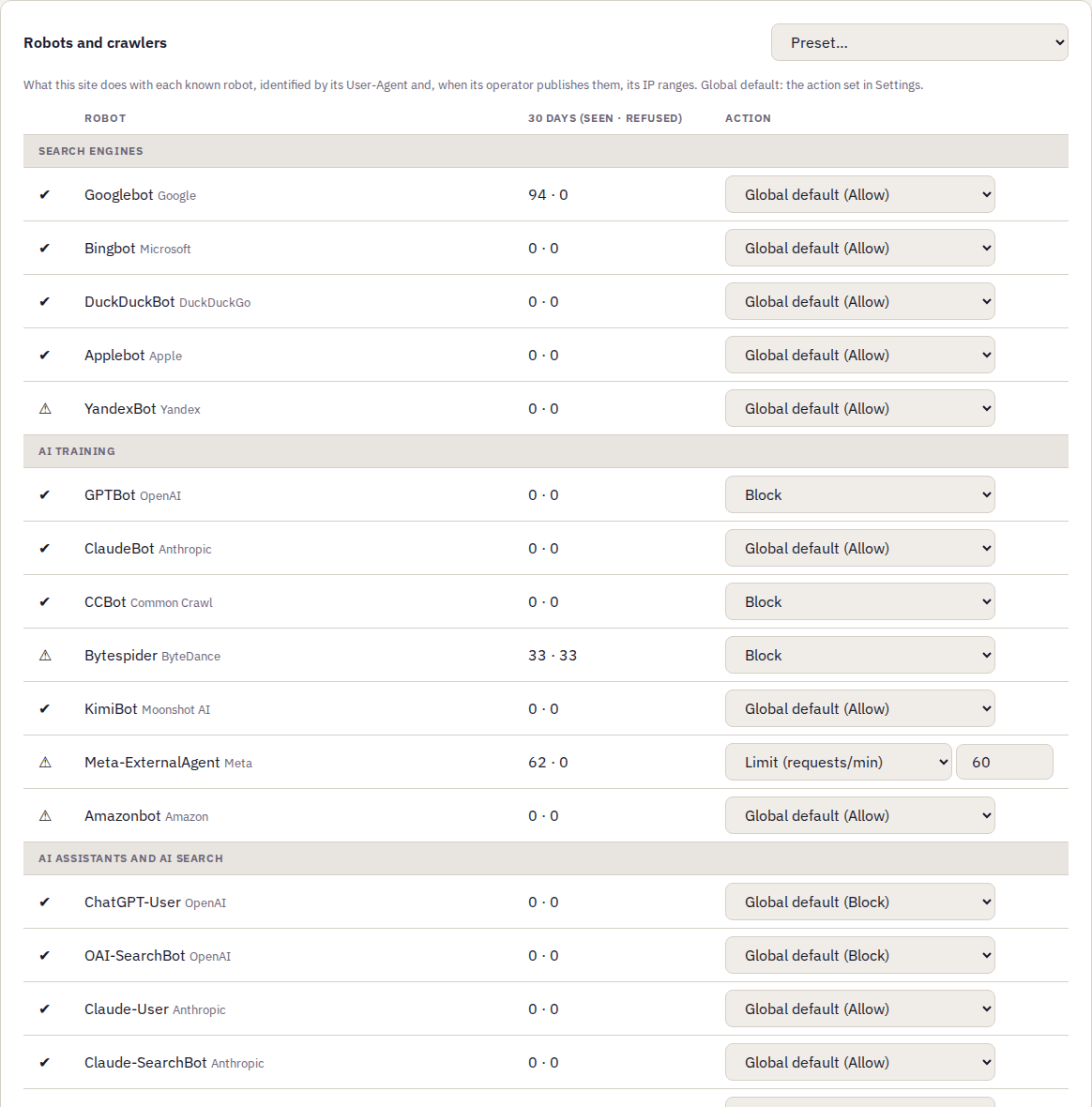
Robots and crawlers. The shop blocks the AI training robots that copy its product pages, limits the robots that send the most requests and keeps the search engines.
A search engine that is blocked or challenged no longer indexes your site, and your search ranking drops. The panel tells you this when you select it.
- The robot actions come after the verdict of the WAF: a robot that attacks gets the 403 of the WAF, like everybody.
- They never apply to trusted traffic or to the kokiGUARD panel.
- The robot ranges are downloaded with the GEO zones, with the Update Zones button of the GEO Blocking page.
Your shop must stay in Google, but you do not want AIs to train on your product pages. What do you choose?
3.6 Paranoia and categories: let Kokiris set them
- Understand what the paranoia level and the categories control.
- Know why you make this setting with Kokiris.
This setting changes the behavior of hundreds of rules at the same time. If it is too high, it blocks real customers. If it is too low, it lets attacks through. Kokiris sets it for you during the training phase, from the real traffic of your sites, and then adapts it if your sites change.
Do you want a stronger or a less strict protection? Ask Kokiris: Kokiris tests the change in Detect mode before it goes into production.
The paranoia level is the sensitivity of a smoke detector. If it is too sensitive, it sounds for a piece of toast; if it is not sensitive enough, it misses the start of a fire. The correct setting depends on the room, that is, on your site and its traffic.
To understand what you see on the page of a site:
| Level | Effect |
|---|---|
| PL1 · Minimal | Few false positives, solid basic protection. The usual starting point. |
| PL2 · Standard | More detections, some false positives to correct. |
| PL3 · Strict | Fine detection, many corrections to expect. |
| PL4 · Paranoid | Very strict, many false positives. |
Under the paranoia level, the Enabled Rule Categories card lists the 13 families of the CRS. During the training, Kokiris disables the families that do not apply to your site, for example Java Injection on a PHP site.
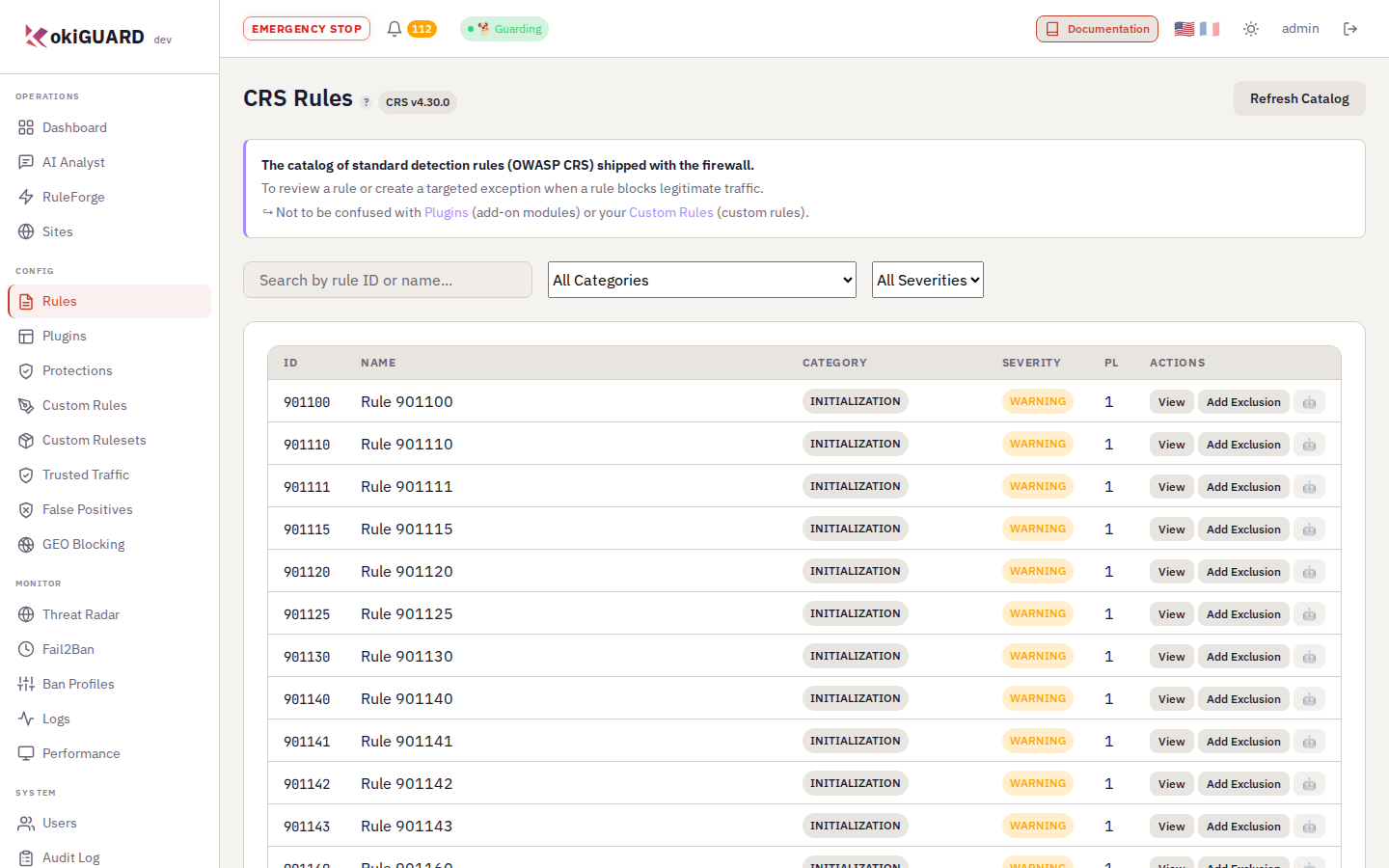
CRS Rules. The full catalogue. For each rule, you can ask the AI for an explanation.
- You set the paranoia level and the categories with Kokiris, during the training and then on request.
- Each change goes through Detect mode first.
Your shop had a wave of attacks and you want to protect it more. What do you do?
- Correct a false positive with the narrowest scope, on one or more rules and one or more fields.
- Choose between trusted traffic and a false positive correction.
- Set a rate limit, a maintenance page, a queue or a JavaScript challenge.
- Correct or trust only under conditions.
- Choose between refusing and letting through large request bodies.
- Block a country, in detection first.
- Choose, site by site, what you do with each known robot.
- Leave the paranoia level and the categories to Kokiris, and know why.