Before you start
Four short chapters to start correctly: how to use the guide, what you need, the training phase led by Kokiris, and what kokiGUARD does or does not do.
0.1 How to use this guide
Each chapter covers only one topic and always follows the same order, so that you know where to look:
- Goals: what you can do at the end of the chapter.
- To do: numbered steps, in the order in which you do them in the panel.
- What you should see: the expected result, with a real screenshot or real terminal output.
- Key points: three points at most.
- Check yourself: one question with an immediate answer, to make sure that you understand the topic.
Most of the time, Kokiris sets up and tunes your kokiGUARD. Levels 1 and 2 teach you how to read what it does; levels 3 to 5 show you everything that it can do, so that you can act yourself or know what to ask Kokiris.
The levels follow each other: each level uses what the previous level set up. If you already know a topic, use the table of contents or the search to go directly to the chapter that you need. The “I have finished this chapter” button at the end of each chapter updates your progress in this browser. For each question, only your first answer counts in the score; the “Reset” button of the introduction clears your progress and your score. You can also print this guide: the quizzes print with their answer.
They come from a real kokiGUARD, in its November 2026 version, that protects the sites of a fictional client, “Atelier Mirabelle”: a shop, a blog, a trade area and three APIs. The traffic is test traffic that imitates real visitors, robots and attacks. The IP addresses in the logs are addresses reserved for documentation (192.0.2.0/24, 198.51.100.0/24, 203.0.113.0/24). Your panel is identical: only your sites and your traffic change.
0.2 Your kokiGUARD
Kokiris installs and operates your kokiGUARD in front of your sites. To follow this guide, you need:
| Need | Where to find it |
|---|---|
| The address of your panel | Kokiris gives it to you when the service starts. |
| A user account | Kokiris or an administrator of your team creates it. |
A terminal with curl | Optional. Useful for the tests in chapters 2.3 and 3.3. |
Your account has a profile: one of the four roles, or a custom permission grid. The profile sets the pages that you see and the pages that you can change. Each chapter gives the necessary role.
| Profile | What it lets you do |
|---|---|
Viewer viewer | See everything, change nothing. |
Operator operator | In addition: ban and unban IPs, use the AI assistant. |
Editor editor | In addition: change the sites, the rules, the false positives, the trusted traffic, the geographic blocking and the error pages, then apply. Create your own API keys. |
Admin admin | In addition: users, settings, restore a revision, emergency stop, audit log, pricing. |
| Custom | A permission grid, box by box: Read or Write, page by page. For example, an account that sees only the dashboard (chapter 5.5). |
| Reseller, Member | On a shared kokiGUARD: a permission grid limited to some sites. The reseller creates its members; neither of them can change what applies to the whole platform (chapter 5.5). |
The menus follow your rights: a page that your account cannot open does not appear, and a button reserved for another profile is hidden.
How a request goes through kokiGUARD
Each request goes through two checks before it reaches the site. HAProxy does the fast checks, by address, by country, by robot or by volume. Then Coraza reads the content of the request and gives it an anomaly score. Its rules come from the CRS, the reference open-source ruleset that OWASP publishes, with the Kokiris protections and your own rules in addition.
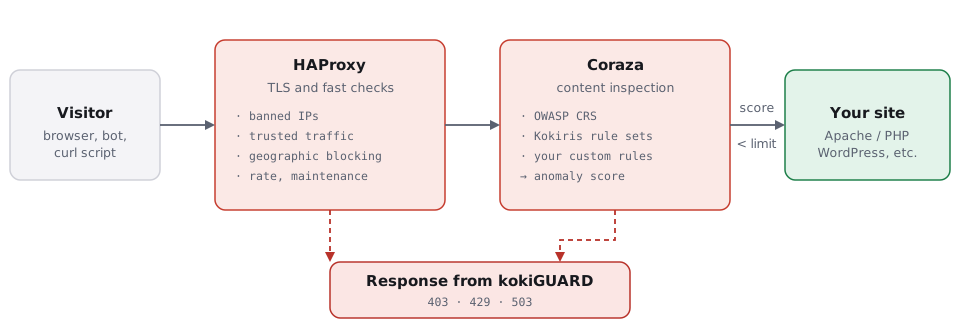
- HAProxy decides on the address, the country and the volume. Coraza decides on the content.
- A blocked request never reaches the site. kokiGUARD answers it.
0.3 The training phase
- Understand how your kokiGUARD goes live without breaking your production.
- Know what Kokiris tunes for you and what you can do during this time.
A badly tuned WAF blocks real clients. To prevent this, each go-live starts with a training phase, led by Kokiris:
- Kokiris adds all your sites to kokiGUARD, in Detect mode: the WAF analyzes everything, but blocks nothing.
- Kokiris watches your real traffic and finds the false positives: the legitimate requests that the WAF would take for attacks.
- Kokiris adjusts the configuration: false positive corrections, rule categories, paranoia level, rulesets for your CMS.
- When the logs are clean, Kokiris puts your sites in Block, then in Block + ban, without breaking production.
Who does what
| Topic | Who does it |
|---|---|
| Installation, go-live, training phase | Kokiris |
| Adding your sites to kokiGUARD | Kokiris, automatically when hosting starts |
| Updates of the OWASP rules and of the Kokiris protections | Kokiris publishes them; the bell of the panel tells you |
| Monitoring of HAProxy and Coraza | Kokiris, continuously |
| Paranoia level and rule categories | Kokiris, during training, then on request |
| False positive correction | Kokiris during training; you after that, or Kokiris on request |
| Trusted traffic, rate limits, maintenance, waiting room queue, blocking by country | You (editor role), or Kokiris if you prefer |
| Robots and crawlers policy of each site | You (editor role), or Kokiris |
| Challenge mode, inspected body size, automatic apply | Kokiris, with you |
| SSL certificates of your domains | Kokiris, or you (administrator role) |
| Ban or unban an address | You (operator role), or Kokiris |
| User accounts of the panel and their rights | You (administrator role) |
| API keys of your scripts | You (editor role for your own keys) |
| Scanner detection | Kokiris, or you (administrator role) |
| Emergency stop | You (administrator role), or Kokiris |
Follow levels 1 and 2 of this guide, read the logs, and tell Kokiris about each page of your site that does not behave correctly. You know your forms, your internal tools and your partners better than anyone: this information makes the tuning faster.
During the training phase, a client tells you that they cannot place an order any more. Can kokiGUARD be the cause?
0.4 What kokiGUARD does, and does not do
A web application firewall is one protection layer among others. If you know where it stops, you prevent bad surprises.
✓What it does well
- It blocks known attacks (injections, file reading, scanners…) before they reach your site.
- It covers the delay between the publication of a vulnerability and the update of your site, with the Kokiris protections.
- It absorbs abuse: brute force, catalogue scraping, traffic peaks.
- It keeps your data with you: the inspection occurs on the server that hosts your site, without a third-party service.
✕What it does not do
- It does not replace updates. A Kokiris protection gives you time; the vulnerability stays in the code until the site is updated.
- It does not see what looks like normal use: a stolen password, used calmly, gets through.
- It does not back up or clean a site that is already compromised.
- It does not replace a strong password or two-factor authentication on your back office.
Three frequent questions
| Question | Answer |
|---|---|
| Does kokiGUARD slow down my site? | The inspection occurs on the server, without a round trip to an external service. The Performance page shows the load and the status of the services live. On a very busy shop, Kokiris can also exclude images, fonts and videos from inspection (chapter 5.3). |
| Does my data, or the data of my clients, go to a third party? | No. The logs stay on your servers, at Kokiris. Only the AI assistant, if you turn it on, sends extracts to the provider that you choose: addresses, domain names and e-mail addresses are pseudonymized, and no cookie or password is ever sent (chapter 5.4). |
| And if kokiGUARD fails? | Kokiris monitors HAProxy and Coraza continuously and gets alerts. If the inspection engine stops, your sites stay reachable: the traffic goes through without inspection during the intervention. On the offers with two nodes, the configuration is replicated on both nodes. |
Kokiris has just published a protection against a vulnerability of your CMS. Must you still do the update?